Understanding Android CPU Architecture (ABI): Why arm64-v8a, armeabi-v7a, and x86 Matter
If you've ever merged a set of split APK files and watched your phone throw back "App not installed," or worse, watched it install fine only to crash the instant you tapped the icon, there's a decent chance the real problem had nothing to do with a corrupted download. It was almost certainly about architecture: a mismatch between the CPU your phone runs on and the CPU the app's native code was compiled for. Most Android users never have to think about this, right up until the moment it quietly breaks something, and then it becomes relevant fast. Here's what CPU architecture means for an APK, why a single app on the Play Store secretly ships as several different builds of itself, and how to check compatibility before you install anything.
What an ABI Is
ABI stands for Application Binary Interface. In practical terms, it's the instruction set a chip understands — the raw machine code format a processor can execute directly. Most of an Android app, the parts written in Java or Kotlin, gets compiled into bytecode that runs inside the Android Runtime (ART), and ART doesn't particularly care which chip it happens to be sitting on. That layer is architecture-agnostic by design, which is a big part of why Android apps generally "just work" across such a wide range of hardware.
Native code is a different story. Plenty of apps, especially games, camera apps, machine-learning tools, and anything doing heavy audio or video processing, ship native libraries written in C or C++ through the Android NDK. Those libraries are compiled ahead of time into machine code for one specific instruction set, and a chip built for one instruction set generally can't execute machine code written for a different one. That's the entire reason ABIs exist as something worth understanding: the moment an app includes even one native .so library, its compatibility becomes tied to the architectures that library was built for.
The Architectures You'll Run Into
There used to be more variety in this space (remember plain armeabi, or MIPS?), but by 2026 the field has narrowed down to four ABIs worth knowing:
| ABI | Bit width | Typical devices | Notes |
|---|---|---|---|
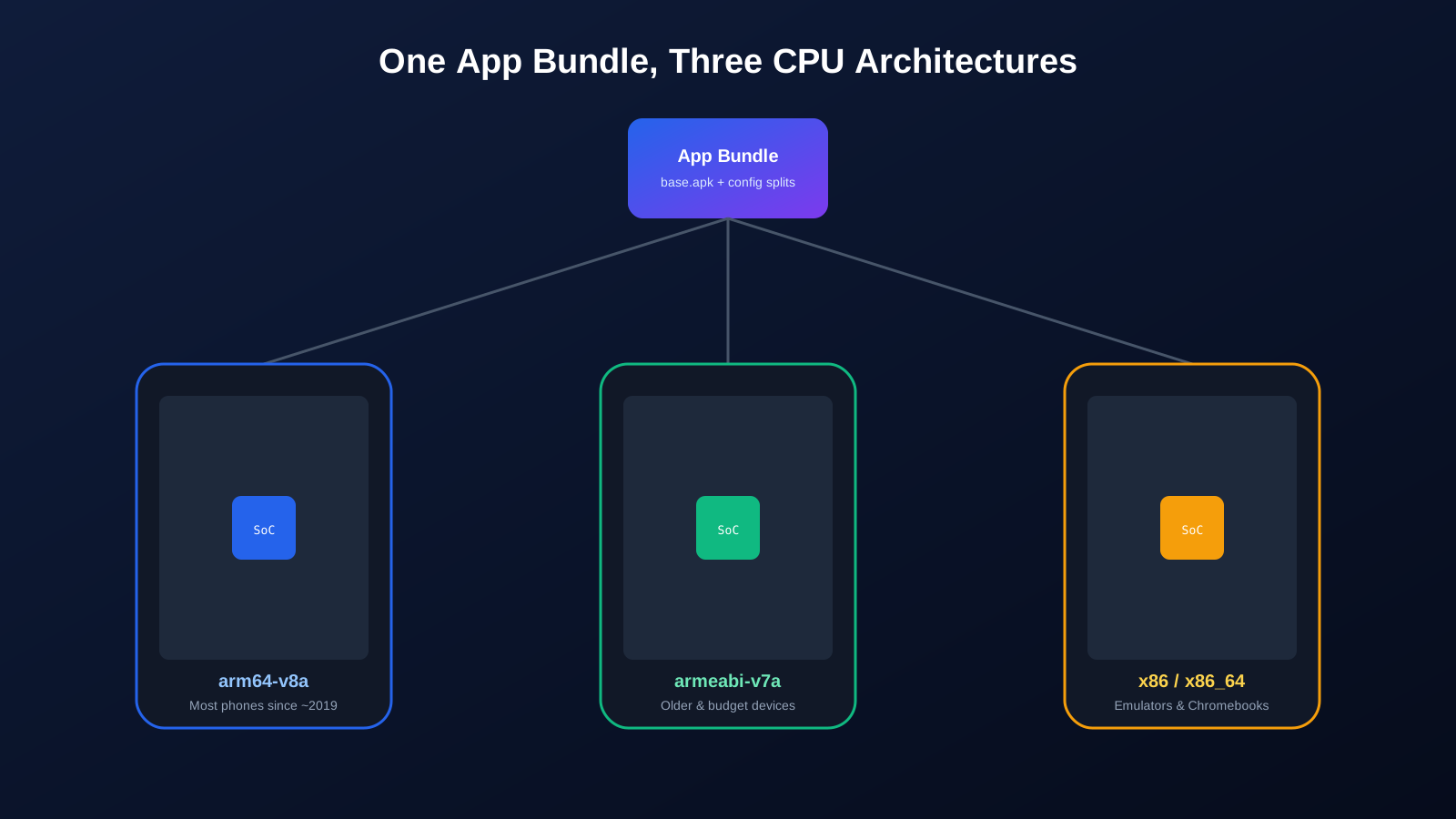
arm64-v8a | 64-bit ARM | Virtually every phone sold since roughly 2019 | The default target for new apps; Google has required 64-bit support for new Play Store submissions for several years now. |
armeabi-v7a | 32-bit ARM | Older or budget devices, some low-cost phones still sold in emerging markets | Still shipped by many apps for backward compatibility, even though most active devices no longer need it. |
x86 | 32-bit Intel | Old Intel-based tablets, legacy emulators | Mostly obsolete; you'll rarely encounter a real 32-bit x86 phone today. |
x86_64 | 64-bit Intel | Some Chromebooks, desktop Android emulators, a few x86 tablets | Important if you test apps in an emulator like an x86-based Android Studio AVD or certain BlueStacks builds. |
If you're holding a phone bought any time in the last five or six years, it's almost certainly arm64-v8a. The exceptions worth remembering are emulators and Chromebooks, which frequently run on x86_64 instead, since that matches the underlying laptop or desktop CPU.
Why Apps Bother Shipping Multiple Builds At All
One obvious question is why developers don't just cram every architecture's native libraries into a single APK and be done with it. Some apps do exactly that, and it's called a universal or "fat" APK. The downside is size. A game with native libraries for arm64-v8a, armeabi-v7a, x86, and x86_64 all bundled together can easily double or triple in size compared to a build containing just the one architecture your device needs. Multiply that across millions of installs and you're looking at a genuinely significant amount of wasted bandwidth and storage, for code that will never run on that device.
To avoid that waste, Google Play and the Android App Bundle format split an app into a small base APK plus a series of configuration APKs, one of which is dedicated to architecture. When your phone requests the app, Play Store delivers the base APK together with only the architecture split that matches your chip, along with matching screen-density and language splits. You end up with an install that behaves like a single app but is assembled from several purpose-built pieces behind the scenes.
How Split APKs and App Bundles Use This
If you've ever opened an .apks or .xapk package and noticed filenames like split_config.arm64_v8a.apk, split_config.armeabi_v7a.apk, split_config.xxhdpi.apk, and split_config.en.apk sitting next to a base.apk, that's exactly this system in action, just exported as a set of files instead of being delivered silently by the Play Store. Density and language splits are usually safe to install indiscriminately since a phone will simply ignore resources it doesn't need. The architecture split is different: install the wrong one, or fail to install the matching one, and you'll run into real trouble.
When you use a converter to merge a split package back into a single installable APK, the merge process has to pick which architecture splits to fold in. A good converter keeps every architecture split that's genuinely useful, or lets you choose, rather than silently keeping only one and hoping it matches your device.
What Happens When the Architecture Doesn't Match
There are two distinct failure modes worth knowing apart, because they look and feel different to a regular user.
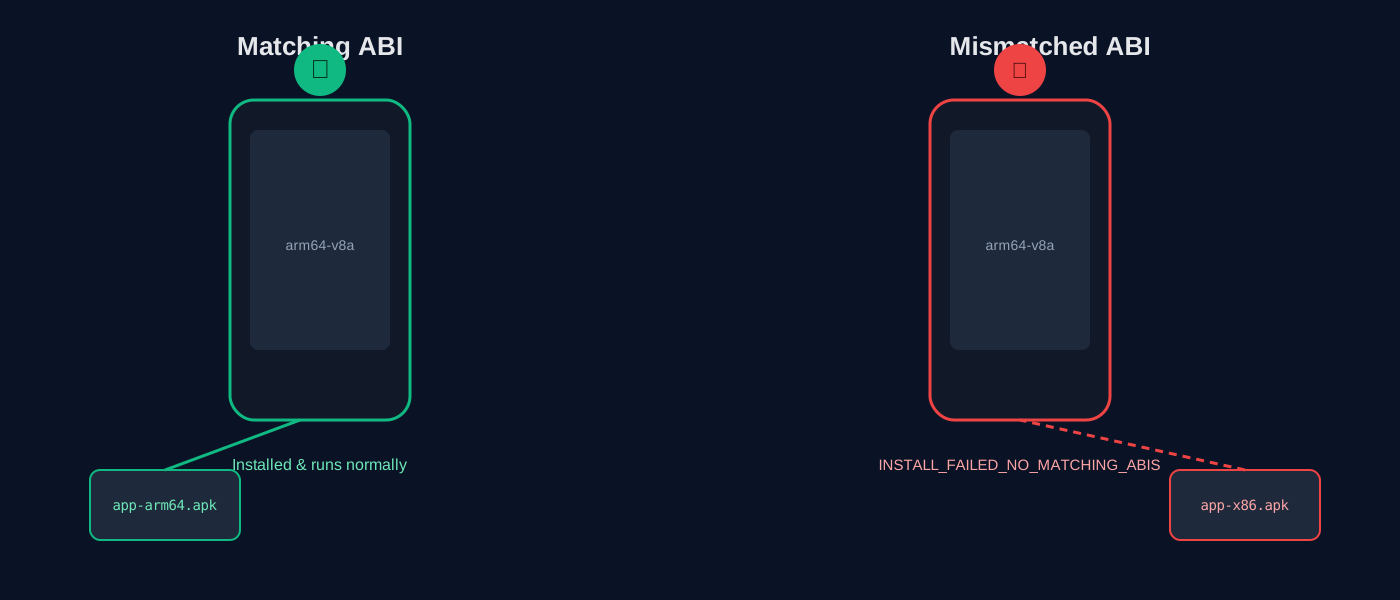
The first is an outright install failure. If an app is built almost entirely around native code with no meaningful fallback, Android's package manager will refuse to install it at all, usually surfacing an error like INSTALL_FAILED_NO_MATCHING_ABIS. You'll never even get to open the app; the installer stops you at the door.
The second, more frustrating outcome is a silent partial success. If an app has a Java or Kotlin entry point that loads fine on its own, but then tries to call into a native library that simply isn't present for your architecture, the install completes normally. Everything looks fine until you tap the icon, at which point the app crashes almost immediately, often with an UnsatisfiedLinkError buried in the logs. This is the classic "I converted it, it installed, then it just closes instantly" story, and it's almost always an architecture problem rather than a corrupted file.
How to Check Your Own Phone's Architecture
For the vast majority of people this is simple: if your phone is from 2019 or later, assume arm64-v8a and move on. If you want to be certain, or you're dealing with an older or unusual device, a few practical options:
- Look up your phone's exact chipset model (visible on the box, in the manual, or on a site like GSMArena) and search whether that chipset is 32-bit or 64-bit ARM.
- Install a lightweight system-information app that reports CPU architecture directly, several free ones exist specifically for this purpose.
- Check whether the phone shipped with Android 9 or later as its original OS version; Google's 64-bit requirements from around that era make arm64-v8a essentially guaranteed on anything that qualifies.
How to Check What Architectures an APK Supports
Before installing a file from outside the Play Store, it's worth confirming what's inside it rather than guessing. An APK's native libraries live in folders named after their architecture inside the lib/ directory, such as lib/arm64-v8a/ or lib/armeabi-v7a/. Any tool that can inspect an APK's internal structure can tell you exactly which of these folders are present, which tells you exactly which devices the file will run on.
Check before you install
Our APK Info tool reads an APK's internal lib/ folder and lists every architecture it was built for, so you can confirm compatibility before sideloading anything. When you convert a split package with our XAPK to APK converter, we also surface this automatically after each conversion, listing the architectures found in the merged file and flagging it when a build appears to be missing a slice that common devices would need.
Universal APK vs Single-ABI APK: Which Should You Use?
| Universal / fat APK | Single-ABI APK | |
|---|---|---|
| File size | Larger, sometimes 2-4x | Small, contains only what your device needs |
| Compatibility | Works on almost any device | Only works on a matching architecture |
| Best for | Sharing one file that should work everywhere, unsure recipients | Your own device, when you already know its architecture |
| Risk | Very low risk of ABI mismatch | Will fail or crash if you pick the wrong one |
Common Mistakes People Make With Split Packages
- Assuming every split is optional. Density and language splits usually are, but the architecture split is not; never skip it during a merge.
- Grabbing only one architecture split from a mirror site. If a third-party download only offers, say, the armeabi-v7a slice, it may simply fail on a device that needs arm64-v8a instead, even though the app itself is legitimate.
- Forgetting that tablets and Chromebooks aren't always ARM. Plenty of Chromebooks running Android apps, and some older tablets, are x86 or x86_64 rather than ARM.
- Testing an ARM-only APK inside an x86 emulator. Some older emulator builds run on x86, and an APK that only ships ARM native libraries simply won't launch inside them, regardless of how the APK was packaged.
- Confusing "universal" with "single-ABI." A universal APK is intentionally larger because it includes everything; a single-ABI APK is small and intentionally limited to one chip family.
Key Takeaways
- An ABI is the instruction set a chip understands; it only matters for apps that include native (C/C++) code.
- arm64-v8a covers almost every modern phone; armeabi-v7a is for older devices; x86/x86_64 mostly show up in emulators and Chromebooks.
- Apps are commonly split by architecture to avoid shipping unnecessary native code to every device.
- A mismatched architecture either blocks installation outright or causes an immediate crash after a seemingly successful install.
- You can check both your device's architecture and an APK's supported architectures before installing anything, avoiding the guesswork entirely.
Frequently Asked Questions
Do I need to know my phone's architecture to install a normal Play Store app?
No. The Play Store automatically detects your device and delivers only the matching architecture split, so this only becomes relevant when you sideload APKs from outside the Play Store.
Can one APK support multiple architectures at once?
Yes. A universal or fat APK bundles native libraries for every supported architecture in one file. It's larger but will install on any compatible device regardless of chip.
Why did my converted APK install but then crash immediately?
This usually happens when the app has a small amount of Java code that installs fine, but then tries to load a native library that wasn't included for your device's architecture, throwing an UnsatisfiedLinkError at runtime.
Is arm64-v8a backward compatible with armeabi-v7a apps?
Generally yes. Most arm64-v8a chips can also execute 32-bit ARM instructions, so an armeabi-v7a-only APK will usually still run on a modern arm64 phone, just not the other way around.
Are x86 Android devices still around in 2026?
They're rare in phones today, but you'll still find x86 or x86_64 in some older Intel-based tablets, a handful of Chromebooks running Android apps, and most desktop Android emulators.
You don't need to memorize any of this. The short version: modern phones are almost always arm64-v8a, apps get split by architecture to save space, and if something refuses to install or crashes right after opening, architecture mismatch is one of the first things worth ruling out before assuming the file itself is broken.