How to Downgrade Android Apps to Older Versions Safely
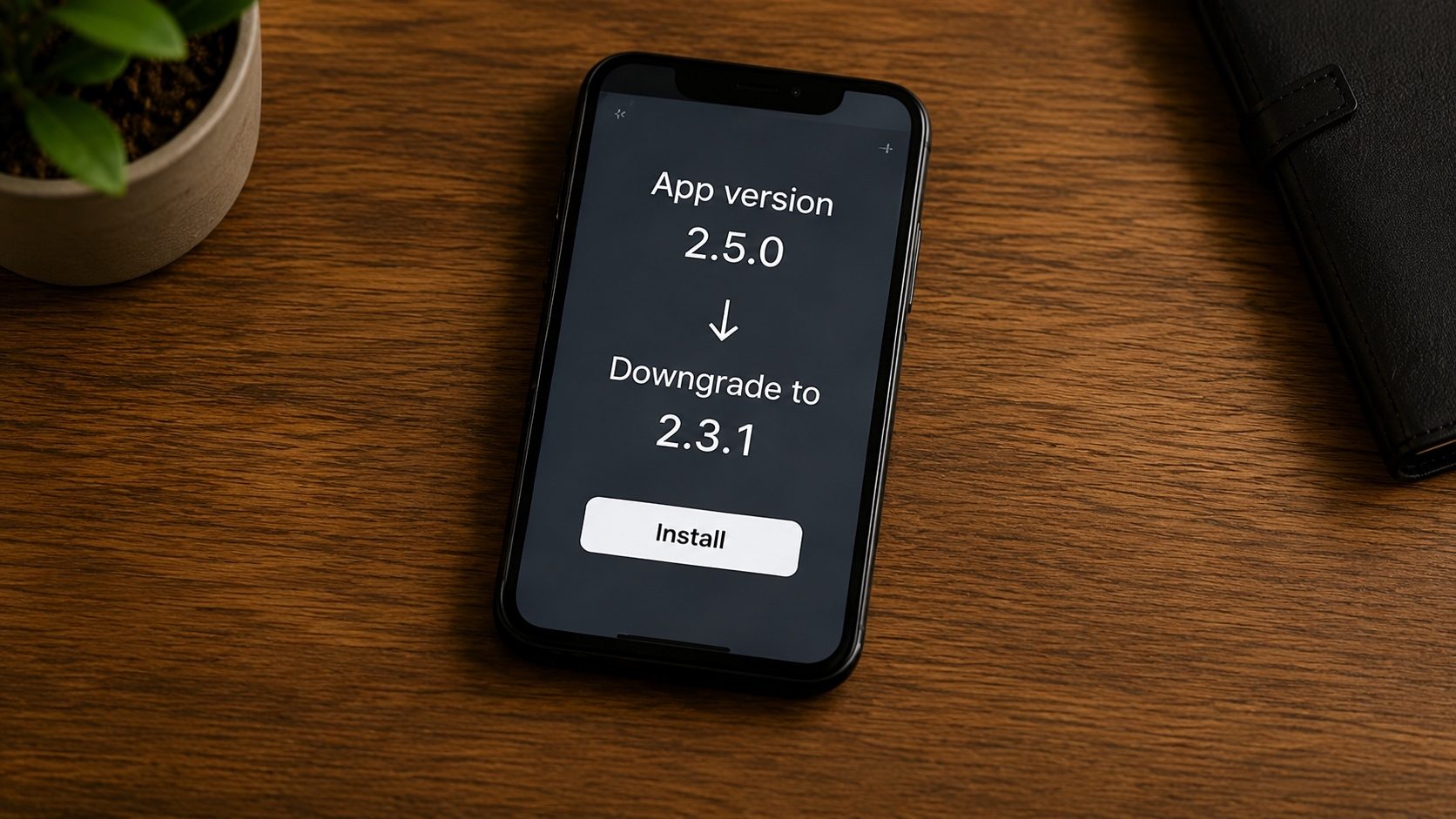
Legal & Safety Notice: This article is for educational purposes only. Downgrading an Android app should be done only with applications you legally own, using older versions you obtained through legitimate channels (for example, an APK you previously exported from your own device, or an older build made publicly available by the developer). XAPK to APK does not host, distribute, link to, or facilitate access to copyrighted, paid, or pirated applications. Sideloading older versions of paid or copyrighted apps from unofficial sources is not endorsed. See our Disclaimer for full terms.
Sometimes, an app update can be a disaster. Whether the developer removed your favorite feature, added excessive ads, or introduced bugs that make the app crash, you might find yourself wishing you never clicked "Update." Unlike iOS, Android allows you to roll back to an older version, but it's not as simple as clicking a button.
Below we'll get into how app downgrading actually works, what can go wrong, and how to roll back to an older, stable version without losing your data along the way.
Key Takeaways
- Android generally prevents "overlaying" an older APK on a newer one; a full uninstall is usually required.
- Uninstalling an app usually deletes its local data. Backups are critical!
- System apps require "Uninstall Updates" instead of a full removal.
- Once downgraded, disable Auto-Update in the Play Store to prevent the version from updating again.
Step 1: Backup Your Current Data
Before you touch anything, understand that uninstalling an app means losing all settings, level progress (for games), and locally stored data. Use these methods to backup first:
- Cloud Sync: Ensure Google Drive Sync or the developer's cloud backup (e.g., Facebook, Supercell ID) is active.
- Manual Data Copy: Move important files from
/Android/data/[package_name]to your SD card or PC. - Titanium Backup / Swift Backup: If you have ROOT access, you can back up the app data exactly as it is and restore it after the downgrade.
Step 2: Locate the Older Version You Legally Own
Identify the specific older version you need to install. Acceptable sources include the application publisher's own changelog and release archive (some developers maintain a complete history of signed builds), an APK you previously exported from your own device, or, for open-source software, the project's official version-tagged release page on its source-control host.
Check CPU Architecture
When downloading older APKs, ensure the DPI and Architecture (e.g., arm64-v8a) match your phone. Our APK Info tool can help you verify your current app's hardware requirements.
Step 3: Uninstall the Current Version
For most apps, simply long-press the icon and click Uninstall. If it's a pre-installed app (like YouTube or Chrome):
- Go to Settings > Apps.
- Find the app and tap it.
- Tap the three dots in the top-right corner.
- Select "Uninstall Updates". This will revert the app to the version that came with your phone.
Step 4: Install the Older APK
Open the older APK you downloaded in Step 2. You will be asked if you want to install. Once finished, do not launch it until you complete the next step.
Step 5: Disable Auto-Updates (Crucial)
If you don't do this, the Play Store will "auto-correct" you back to the latest version within hours.
- Open the Play Store.
- Search for your app and open its listing page.
- Tap the three dots (top-right).
- Uncheck "Enable auto-update".
Get the Version You Love
Ready to roll back? Use our tools to check the metadata of your older APKs and ensure a smooth downgrade.
Verify Older APK SignatureCommon Downgrade Issues
- "App Not Installed": This usually happens because the system detects leftover data from the newer version. Restart your phone and try again.
- Login Failures: Some online apps (like Netflix or banking) block older versions for security. If the app forces an update to start, you cannot downgrade.
- Corrupted Data:
Android/datafiles from version 3.0 might not be readable by version 2.0. In this case, you'll need to start fresh.
Conclusion
Downgrading is a useful escape hatch when an update breaks a workflow you depend on. It takes some effort and puts your app data at risk, but it's the realistic way to get back a version that actually worked for you. Whatever you roll back to, verify any old APK from a third-party source first so you know it hasn't been tampered with.