How to Update Android Apps Without Google Play Store
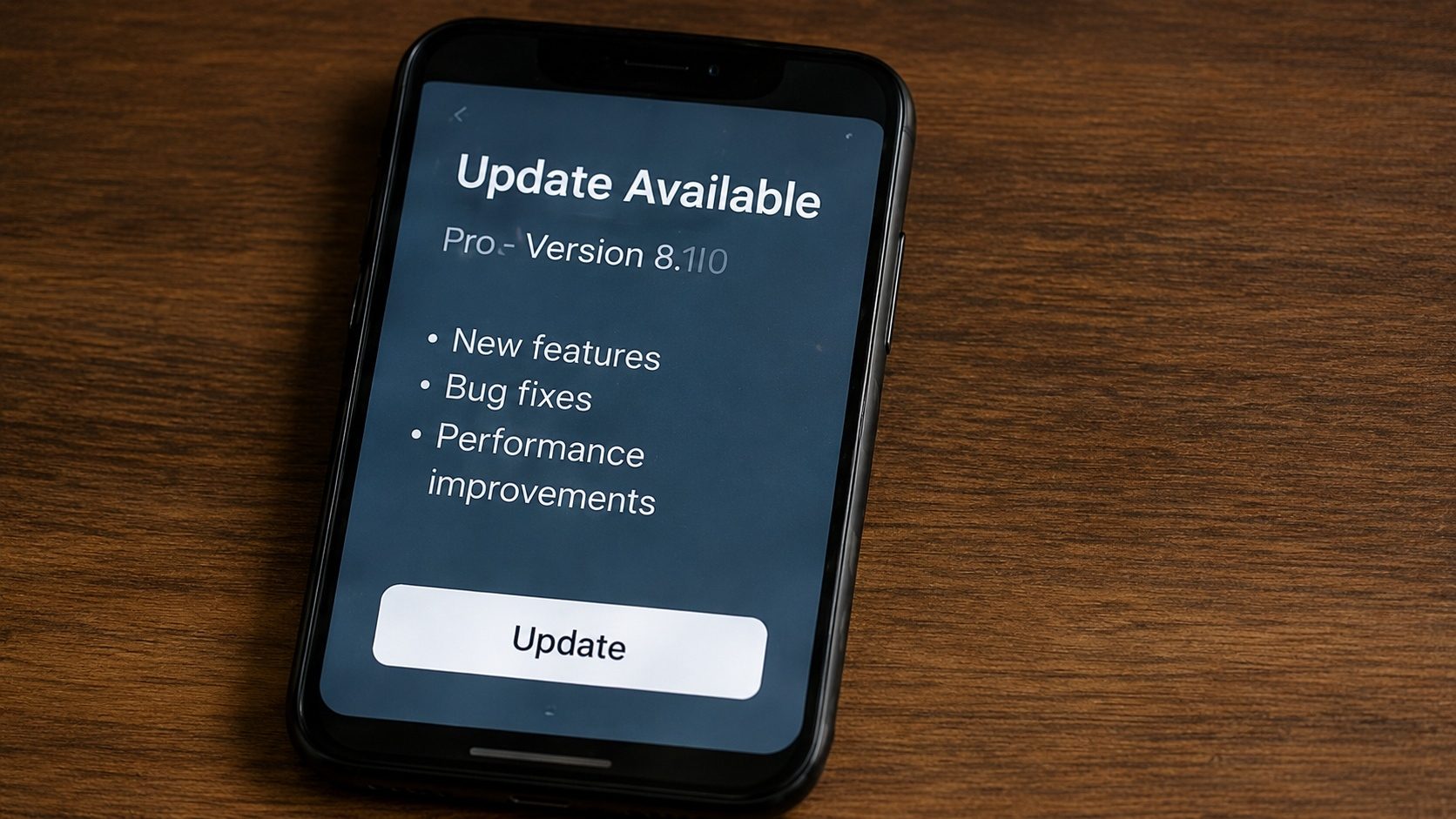
Legal & Safety Notice: This article is for educational purposes only. For most users, the Google Play Store remains the safest and most appropriate way to keep Android apps up to date. The techniques described here apply to legitimate scenarios: updating open-source apps from their own project release pages, applying beta builds supplied directly by a developer, or updating an app on a device that does not have access to Play services. XAPK to APK does not host, distribute, link to, or facilitate access to copyrighted, paid, or pirated applications, and we strongly discourage installing updates of paid or commercial apps from unofficial sources. See our Disclaimer for full terms.
The Google Play Store is convenient for most people, but it isn't always the fastest or most reliable way to stay updated. Maybe you're on a Huawei phone without Google Mobile Services, maybe you're trying to dodge a bug in the current version, or maybe you just prefer to manage your app library by hand. In all of those cases, updating Android apps without the Play Store is easier than you think.
Below we go through the safer ways to apply updates by hand, so you can stay current without leaning on the Play Store.
Key Takeaways
- Android allows "in-place" updates if the new APK is signed with the same key as the old one.
- You must enable "Install Unknown Apps" permissions for your browser or file manager.
- An open-source repository such as F-Droid can automate updates for free / open-source apps without involving the Play Store.
- Always verify the signature before installing a manual update.
Method 1: Manual Updating from the Developer's Own Source
This is the most direct method. For applications whose publisher hosts releases on their own website or a project release page (common for open-source software, browsers, messengers, and developer tools), you can fetch the latest signed build directly from that source.
Process:
- Find the application on its publisher's official site or release page.
- Compare the version number with the one currently on your phone.
- Download the correct CPU architecture (ARMv7, ARMv8/ARM64).
- Open the downloaded APK. Android will ask: "Do you want to install an update to this existing application?"
- Click Install. Your data and settings will be preserved.
Method 2: Using Open-Source Update Channels
For users who specifically want to manage updates outside the Play Store (typically because the device does not ship with Google services, or because the user prefers open-source software), an open-source-focused store can scan installed apps and provide update notifications.
- F-Droid: The standard open-source repository for Android. Every app it distributes is built from publicly-auditable source code by F-Droid's own infrastructure, with cryptographic signatures verified at install time. It has an excellent built-in update notification system and is the recommended option for anyone who wants to update apps without the Play Store while still relying on a trustworthy source.
- Direct from developers: Some applications (browsers such as Firefox, messengers such as Signal) ship a self-update mechanism that pulls signed updates directly from the publisher's own servers, no third-party store involved.
Important: Understanding "App Downgrading"
While you can easily update forward, Android prevents you from installing an older version over a newer one. If you want to roll back an update, you will have to uninstall the app first, which results in data loss. We have a detailed guide on downgrading here.
Caution: Fake Update Notifications
Never click on pop-ups within your browser that say: "Your version of Chrome is out of date, click here to update." Real updates are never delivered this way; these are almost always malicious ads trying to install spyware.
How to Setup Your Device for Manual Updates
By default, Android blocks manual installations for security. You only need to change this setting once:
- Go to Settings > Apps.
- Select your browser (e.g., Chrome).
- Scroll down and tap "Install Unknown Apps".
- Toggle the switch to Allow.
Get Ready for Your Next Update
Use our tools to analyze your current APKs and prepare for a safe, manual update experience.
Check Current App VersionsFrequently Asked Questions (FAQ)
Will I lose my chats if I manually update WhatsApp?
No. As long as the APK you are installing is an official update (signed with the original key), your database and chats will remain untouched.
Can I update a Play Store app with an APK from another source?
Yes, if (and only if) the new APK is signed with the same signing key as the currently installed version. Android refuses to upgrade an installed app with one signed by a different key, which is its primary defence against impersonation. The replacement APK should come from a legitimate source: the publisher's own site, the developer's own release page, or an APK you previously exported yourself. Verify the signature before installing.
Why does "Install" button become greyed out?
This is usually due to a screen overlay app being active (like a blue light filter). Turn off "Draw over other apps" for those utilities and try again.
Conclusion
Updating outside the Google Play Store gives you more control over your Android experience. Whether you are tracking newer features or working around delivery delays in your region, manual updating is safe as long as you stick to legitimate sources, the developer's own release page or an open-source repository such as F-Droid, and check signatures before installing each update.