How to Evaluate APK Sources Safely: A Security Checklist
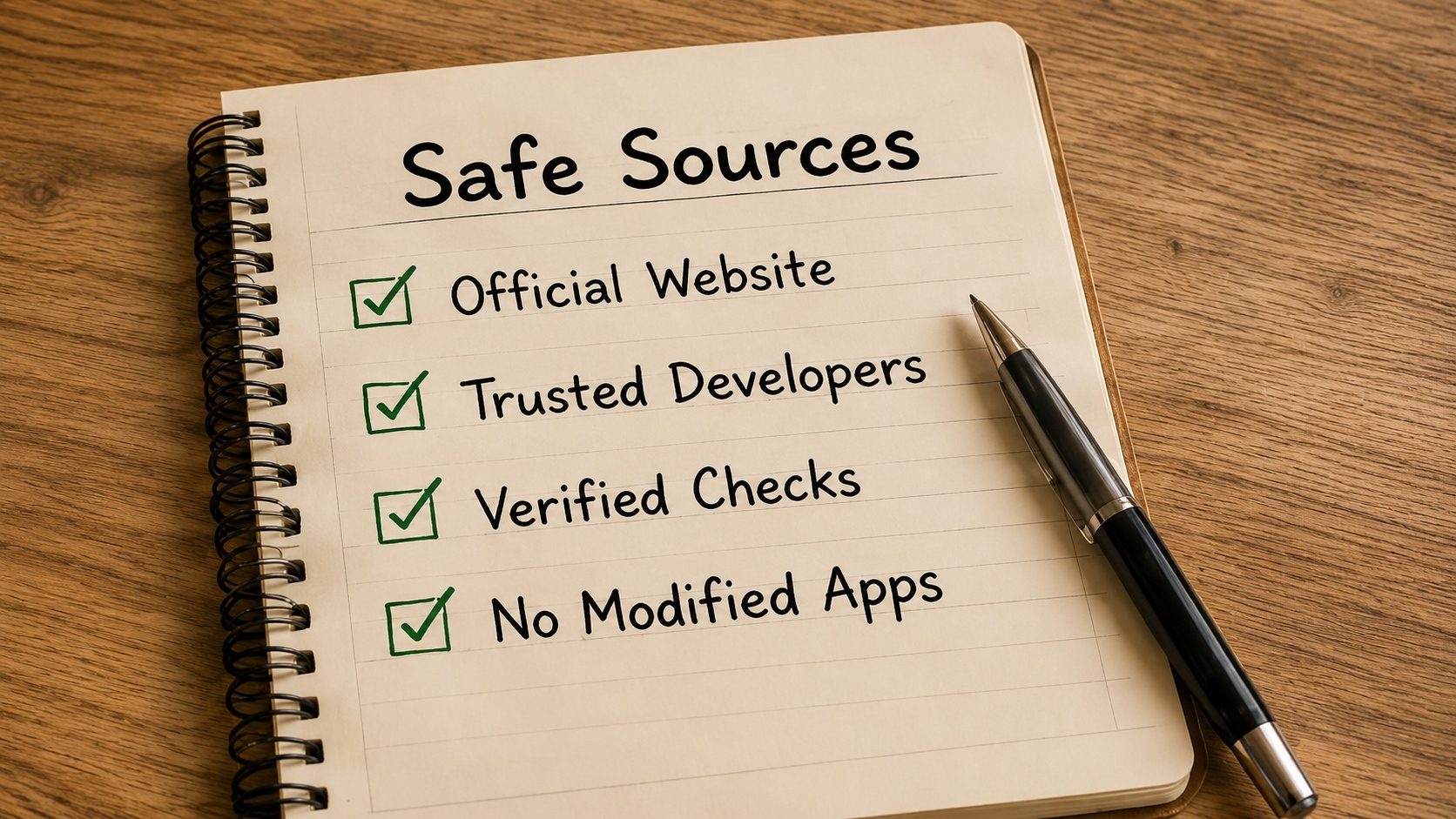
Important: The official Google Play Store remains the safest place to install Android applications for the vast majority of users. This article does not recommend, endorse, or link to any third-party APK distribution website. It is a vendor-neutral educational checklist for evaluating an APK file you have already legally obtained (for example, an APK you exported from your own device, a build artifact you downloaded from a project's official release page, or an open-source app from a project's own website). Never download paid or copyrighted apps from unofficial sources.
If you sideload Android apps for legitimate reasons, installing a beta build supplied by the developer, reinstalling an open-source app whose project hosts its own releases, or restoring a backup of an app you legally own, you should always verify the file before installing it. This guide explains the technical signals that distinguish a trustworthy APK from a tampered one, without naming or promoting any specific download platform.
Key Takeaways
- Prefer the official Play Store or the developer's own website whenever possible.
- Always verify the APK signature matches a known-good signing certificate.
- Compare the SHA-256 hash against a hash published by the developer.
- Review the requested permissions before installing, anomalies are red flags.
- Use our free APK Verifier and APK Info tools to inspect any package locally in your browser.
1. Start with the Most Trusted Source
For almost every user, the answer is the Google Play Store. Apps distributed there are signed by their original developers, scanned by Google Play Protect, and policed for malicious behaviour. If an app you want is on Play, install it from there, full stop.
The legitimate exceptions to the "Play first" rule are narrow:
- The application is open-source and the project distributes signed builds from its own official site, GitHub Releases page, or self-hosted update server.
- You are a developer testing your own internal builds.
- You are restoring an APK you exported from a device you own.
- The publisher distributes a region-specific or beta build directly from their official domain (and you can confirm the domain matches the developer's verified branding).
Anything outside those cases, and especially "free" copies of paid apps, should be treated as high-risk and is almost always a copyright violation.
2. Verify the Digital Signature
Every APK is cryptographically signed by its publisher. If the signature on a file does not match the publisher's known signing certificate, the file has been altered and must not be installed. Even a single malicious byte injected into an APK will invalidate the signature.
What to look for:
- v2/v3/v4 signature scheme present (modern Android requires it).
- Certificate fingerprint (SHA-256) matches a fingerprint published by the developer or matches a previously-installed copy of the same app.
- The certificate is not expired and the signing chain is intact.
You can run this check entirely offline using our APK Verifier: drag the .apk in, see the signing certificate and SHA-256 fingerprint, and compare it to the value the developer publishes.
3. Compare the SHA-256 Hash
A SHA-256 hash is a fixed 64-character fingerprint of the file's contents. If even one byte changes, the hash changes completely. Reputable developers publish the SHA-256 of every release alongside the download.
Process:
- Compute the SHA-256 of the APK on your machine (most operating systems include a
sha256sumor equivalent command; you can also use our APK Verifier). - Compare it character-by-character to the value published by the developer on their official site.
- If the values match, the file is byte-identical to what the developer released. If they differ, do not install.
4. Review the Manifest and Permissions Before Installing
Android's permission system is your last line of defence. Before you install anything from outside the Play Store, open the package with our APK Info tool and read the manifest. Watch for:
- Disproportionate permissions. A simple offline calculator does not need SMS, contacts, accessibility-service, or device-admin access. Anything that asks for far more than its job requires is suspicious.
- Accessibility Service abuse. Malware frequently abuses
BIND_ACCESSIBILITY_SERVICEto read screen content and click buttons on the user's behalf. Grant this only to apps you trust and that genuinely need it (screen readers, password managers, etc.). - Device administrator / Device owner. Almost no consumer app legitimately needs this. If a sideloaded app requests it, stop.
- Mismatched package name. If the package name (e.g.,
com.example.app) does not match the genuine app's package, the file is impersonating a real product. - Unfamiliar exported components. Activities, services, or broadcast receivers that are exported and look out of place can be a backdoor.
5. Red Flags Common to Untrustworthy Sources
Whether a source is a website, a chat group, or an email attachment, treat it as untrustworthy if you see any of the following:
- Free copies of paid apps or "premium unlocked" versions of commercial applications. These are pirated, often modified, and frequently carry malware.
- "Mod" or "cracked" branding. Modified APKs by definition fail signature verification and may contain anything the modder added.
- Multiple confusing "Download" buttons that turn out to be ads.
- Aggressive popups, fake "virus detected" alerts, or forced redirects.
- No HTTPS. If the source is not served over an encrypted connection, your download can be silently swapped in transit.
- No publisher information, no signing details, no changelog. A legitimate release has all of these.
- Pressure to disable Play Protect or to grant accessibility / device-admin "to make it work."
6. After Installing: Keep Watch
Verification is not a one-time event. After a sideloaded install:
- Leave Google Play Protect enabled. It scans installed packages periodically.
- Watch for unexpected battery drain, network use, or pop-up overlays, classic malware signatures.
- Periodically open Settings → Apps and review any apps you no longer use; uninstall them.
- If an app updates itself outside the Play Store, check that the new build's signature matches the previously-installed one. A mismatch is an emergency.
7. What This Site Does (and Does Not) Provide
XAPK to APK is a set of browser-based file-format converters and inspectors. We do not host APK files, we do not link to APK download sites, and we do not facilitate piracy. Every tool on this site processes files locally in your browser, no upload, no copy, no retention. See our Disclaimer and Privacy Policy for full details.
Inspect Any APK: In Your Browser
Drag in a file you already have to read its manifest, signing certificate, SHA-256 hash, and requested permissions. Nothing is uploaded.
Open APK Info Tool Open APK VerifierConclusion
Sideloading is a legitimate and powerful capability of the Android platform, but it shifts security responsibility from Google's reviewers onto you. By sticking to the official Play Store for paid and consumer apps, restricting sideloading to first-party developer releases of software you already legally have access to, and verifying the signature and hash of every package before installing, you can enjoy that flexibility without compromising security or breaking the law.